LinkedIn can be an echo chamber for tech trends. In terms of AI and agents, everyone is supposedly automating everything they’re doing. In reality, some people are doing real stuff with it, but most people are not.
My dad, an experienced engineer and technical leader (not in software) asked me how to build an agent. Not because he was trying to ship a polished product, but because he wanted to learn how this stuff actually works while also automating something he was doing manually. He’s looking for his next role now, and spends a lot of time digging through jobs on LinkedIn. The manual part is the worst part: opening postings, scanning for deal breakers, and realizing that 9 out of 10 of them were never a fit in the first place. His instinct that AI could help with this core problem was spot on. With the right prompt, you can have a model do the boring first pass: read the description, apply your filters, and toss the postings that were never a fit.
This was an interesting proposal to me because while my dad is technical, he wouldn’t use the same tools I would to build something like this. When I want to automate something or run a lightweight process, I reach for an AWS Lambda function in most cases. For someone who isn’t building software or using AWS day to day, a Lambda function would be a ton of overhead. On the other side, there’s always AI coding tools, but I wanted to protect my dad from building a vibe-coded behemoth that would be over engineered, cost a lot to build, and probably stop working within a week. Simple is always better.
So what’s the move? I think tools like Make and Zapier are the move here. They create workflows that enable connections from existing services, steps to unpack and manipulate the data between steps, and easy UIs to get started quickly and ship without a steep learning curve.
Sometimes the answer isn’t a full-on AI “agent,” it’s an automated workflow.
Personally I prefer Zapier, but Make allowed me to share this workflow for free, and I’m going to stick with it because it allows you to create an account and use Anthropic without creating/using an Anthropic API key.
I also have to say, Make is an unfortunate name, because it makes it difficult to google things for troubleshooting. It also shares the name with a Unix CLI tool, it’s a verb….anyway we can move on.
We will also be using Railway for an API. In this case I wrote the code for an API to do the actual job scraping, and deployed it on Railway as a template for anyone to easily copy and deploy themselves.
Here’s the overall approach:
- Hard filter (API): deterministic stuff early: keywords, locations/work type, rate limits, retries, and basic cleanup.
- Soft filter (AI): nuanced judgment late: “is this actually a fit?” and “is this a deal breaker?”
Make (Zapier too) has AI features that will help you build your whole pipeline from a prompt, but a key fact for me is that handing over actual tasks to AI in the build process is risky. Just my opinion and experience, but letting AI do all the work without having a grasp of what it’s doing, is setting up a pricey and delicate disaster. Setting up tasks one by one, where you know the desired input and output, and then handing over the work to AI that you can then check, is a much more manageable situation.
AI is a single step in the pipeline, not the pipeline.
So let’s get into it. This is how to build an automation workflow that sends you a summary email of LinkedIn jobs based on your nuanced preferences. If you’ve tried “just add AI” and it turned into spam or noise, that’s usually an approach problem, not a model problem. Feel free to reach out if you want a second set of eyes on your setup.
Tutorial
Prerequisites
- A Make.com account
- A Railway account
The Job Scraping API
LinkedIn doesn’t have an API that we can use to grab jobs, so we have to scrape them from web pages. It’s more messy and a bit delicate, but it’s still fairly common and I already went through the work of making sure the code works. I wrote (with some help from Claude) a simple API that takes some inputs and returns filtered job postings. The API handles rate limiting and retries that can be issues for web scraping. The code is public on my GitHub, but all you need to get going on this is the Railway template, and they even have a fancy markdown button for it:

Go ahead and create your railway account if you don’t have one, and deploy the template as a new project. It can take around 5 minutes to deploy it.
Cool, your job scraper API is up. Copy your API address to a notepad. It looks something like web-production-12345.up.railway.app
It’s open to the public, which in most cases is a BAD idea, but in this case, you have no account information tied to the API, and you have no cost associated with it, so the risk is nonexistent.
Testing from your Terminal (optional)
If you’re inclined, you can test this API from your terminal.
Copy this and paste it into a notepad so you can edit it:
curl -X POST https://web-production-12345.up.railway.app/jobs \
  -H "Content-Type: application/json" \
  -d '{
    "keywords": ["data scientist"],
    "searches": [
      {"location": "Chicago", "work_type": "hybrid"},
      {"location": "", "work_type": "remote"}
    ]
}'- replace the
web-production-12345.up.railway.appwith your deployed railway app address, and feel free to replace the keywords or search information. Be careful to not delete any of the characters around the terms.
Once you’ve made edits, you can copy and paste the whole command into your terminal and run it, and you’ll get a big block of data back. These are job postings from the web scraping API.
The Make Scenario
Now that our API is up, we can build out the Make scenario.
Create your Make account on make.com if you haven’t already. Hit the “Create Scenario” button in the top right to create your scenario.
Now to import the template I created. Download the JSON file from this gist: https://gist.github.com/jmurray6/0d75e8cc8c523a625a7ed12024137ec6#file-job-scraper-make-blueprint-json
Right click on “Raw” and click Save Link As, and download the file. The resulting file should have a .json extension.
In the top right, click the 3 dots and then hit “Import Blueprint”. Select the JSON file you just downloaded and import it.
Now you have your Scenario mostly set up. It should look like this:
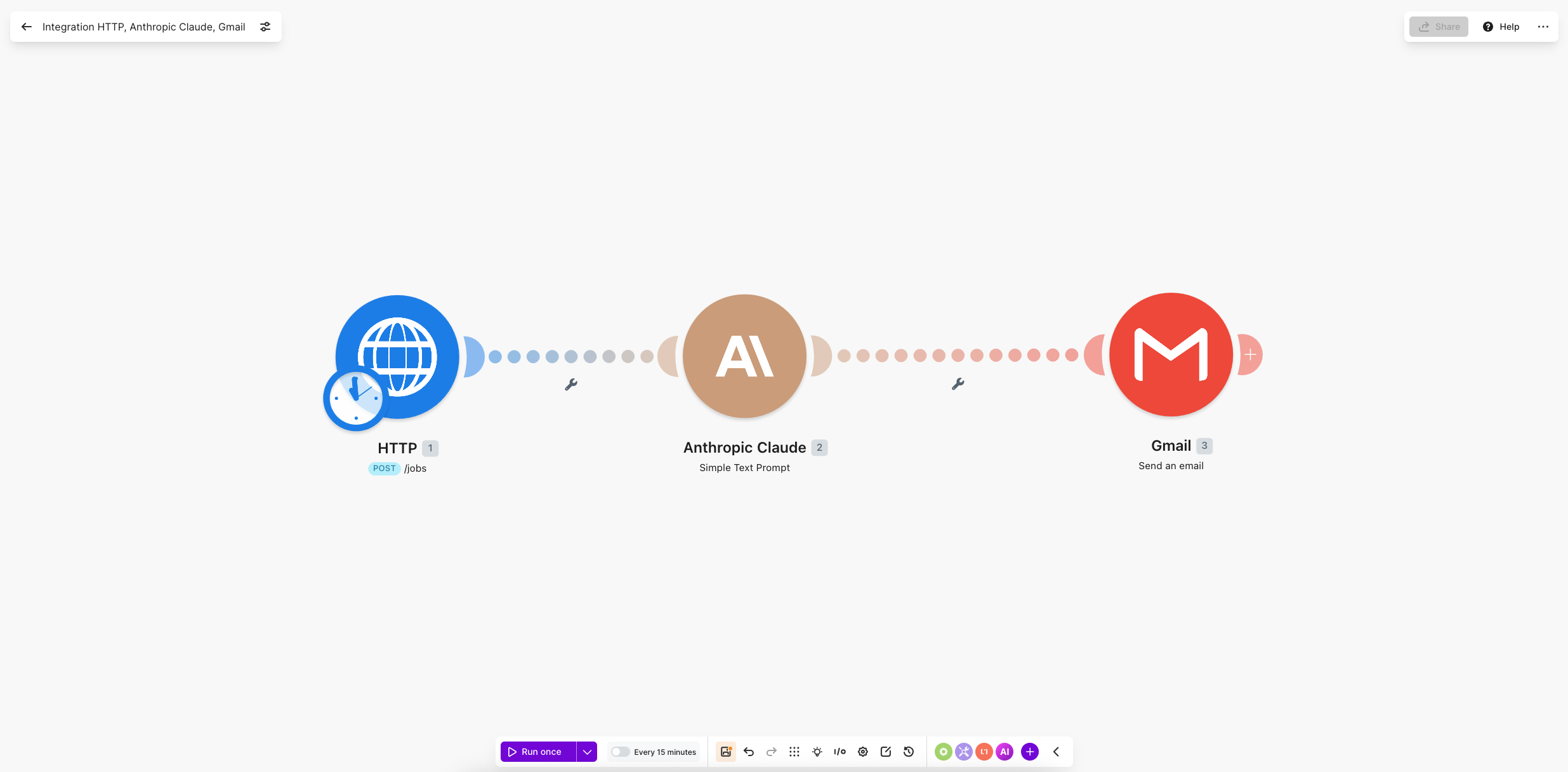
Now we just need to tweak a few things in the scenario, set it up for your preferences and we are all set.
Setting up the Body for the API call
This is probably the most technical part. You’ll want to edit the JSON body to use the preferences that you want in your job search. you can include multiple keywords and multiple “searches” if you’re open to remote and in-person work. I’ll say that from testing, limiting the keywords to 5 max will yield the best results. We’re going for a funnel search where we filter minimally in the beginning and strictly at the end.
Here is your example JSON. I recommend pasting this into a notepad to edit and then to a JSON linter like https://jsonlint.com/ to check that the formatting is all good.
{
  "keywords": ["data scientist", "python", "senior"],
  "searches": [
    {"location": "Chicago", "work_type": "hybrid"},
    {"location": "", "work_type": "remote"}
  ]
}
If you’re looking for just one search, say remote only, it would look like this:
{
  "keywords": ["data scientist", "python", "senior"],
  "searches": [
    {"location": "", "work_type": "remote"}
  ]
}
Once you have your preferences in your JSON body, click on the HTTP step and scroll down to “Body Content” and remove what’s there and paste in your own.
Editing the LLM Prompt
Here is the prompt I have in the Anthropic step by default:
Here are today’s LinkedIn job postings in JSON format. Identify the top 10 >most relevant for a senior software engineer that uses python at an early >stage startup.
Founding engineer roles are great, and anything that deals with tools across >the stack. I want roles that require a good amount of experience and require >some leadership but are not strictly management/leadership roles.
Industries to avoid: Health care and finance
Prioritize jobs with these keywords:
- Python
- Full Stack
- AWS
For each job return:
- Job title
- Company
- Location
- 1-2 sentences on why it’s a good fit
- The application URL
Here is the data:
Format your response using HTML <br> for line breaks and <b> for bold text. Do not include any other HTML tags. Use <br><br> to separate each job listing. Do not use — dividers. Do not use plain newlines — only <br> for line breaks.
Edit it to fit what you want. You can be creative and descriptive here to direct the LLM to extract the best jobs for you. Edit the first 4 blocks to fit your job search. Don’t edit the line or the formatting instructions at the bottom.
Also, the “” is a placeholder where Make gets the data from the previous step. Don’t copy the above prompt and paste it in, as you will clear out that tag.
Set up Gmail Integration
Finally, sign in with a gmail account which Make will use to send emails on your behalf, and set an email address where you want to receive these emails.
Hit the “Run Once” button at the bottom of the page to run the whole workflow. The HTTP step should take the longest.
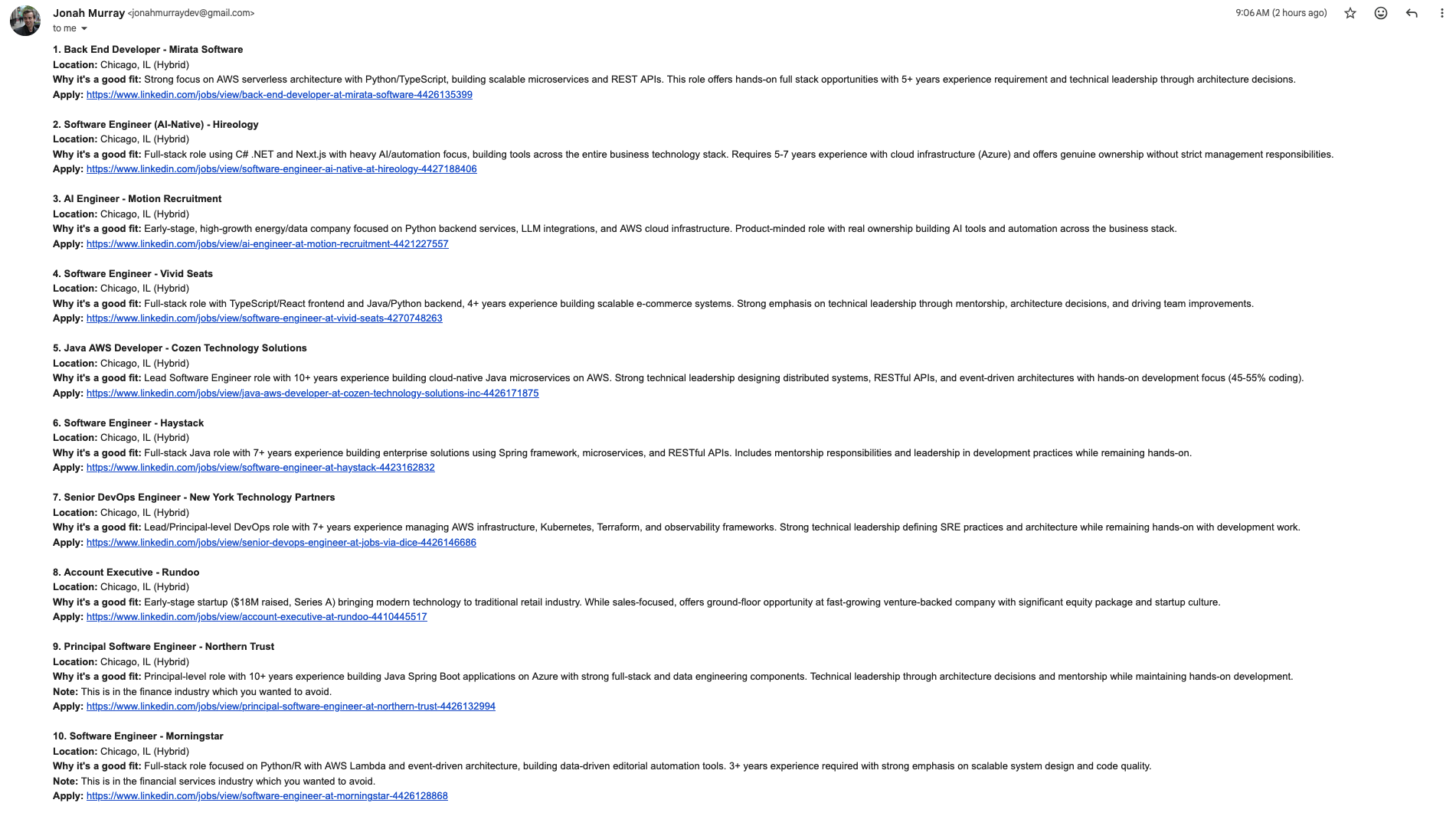
If everything is working correctly, you should receive an email that looks something like this, but with the jobs you care about.
Set up a Schedule
If all of that looks good, hit the clock icon on the HTTP step and set it to the schedule that works for you for job updates. A weekly cadence should work well and won’t put you over the Make free tier.
Customize to your liking
This is your workflow now. You have your own API, query, and prompt. You can update the JSON body to look for different jobs and the LLM prompt to be more specific, less specific, or include or exclude different industries.
Wrapping Up
It was a bit of a challenge to find a path forward that didn’t require API keys, paid subscriptions, or anything too complicated, but the bottom line is that these things are accessible without buying an agent “service” and without vibe coding.
The big idea is the funnel:
- do the hard filtering with code (fast, repeatable, cheap)
- do the soft filtering with AI (nuanced, opinionated, human-ish)
You own this workflow now. You can tweak the filters and the prompt any time your goals change.
If you ever want to take the next step with automating something in your business or in your life, feel free to reach out. I can help you (or your team) set up automation that actually works, and that you can configure yourselves. Whether that’s Make/Zapier level, moving on to something more complex like N8N, or even custom built software.